primechat.
EVERY MESSAGE.
EVERY REACTION.
EVERY MOMENT.
FEELALIVE.
Skip to content
PrimeChat
ProductHow it works
Log in
PrimeChat

Explore PrimeChat

ProductHow it worksLive alert demoOBS setup
FAQ
Appearance
Log in

Your stream. Your people. Their moment.

Built around your broadcast

PrimeChat

Donations that feel alive on stream.

Turn support into part of the show. Create your donation page, design your alerts, and bring every supporter moment into OBS.

Watch an alert in action ↗

Donation pages. Alerts. Your own style.

Explore PrimeChat ↓

Overlay Studio

Design the scene. Then send it to OBS.

Arrange alerts, goals, and banners on the canvas you broadcast. Save layouts for gaming, chatting, landscape, or vertical streams, then switch without rebuilding your scene.

  • PlaceDrag elements or use precise controls.
  • TestTrigger the layout before viewers see it.
  • BroadcastOpen the output as an OBS browser source.

Your scene. Your setup.

Build an entire overlay with one URL, or arrange separate Browser Sources in OBS. Add an alert, a goal, and recent donations, then send a test donation.

No account needed. No payments. Your draft stays on this browser.

PrimeChat / Overlay Studio
Real product view

How it works

One donation.
A whole stream moment.

Follow Maya’s ₹100 from payment confirmation to the broadcast.

Simulated example. No payment or audio.

01

Payment verified

Maya sends ₹100 with a message. The payment is confirmed before PrimeChat creates the donation event.

02

Alert queued

The confirmed donation joins your alert queue. Your message filters and alert settings shape what reaches the stream.

03

Shown on stream

When its turn arrives, Maya’s alert appears through your OBS Browser Source. The supporter becomes part of the show.

Payment verified 01 / 03

Payment confirmed

₹100

From Maya

“That clutch was unreal. What a finish!”
Donation eventReady for the queue
Alert queued 02 / 03
Your alert queue1 alert
M
Maya₹100 donation
Up next

“That clutch was unreal. What a finish!”

Payment verified
Follows your alert settings

One moment at a time. Each alert gets its turn.

Shown on stream 03 / 03
Your broadcast
♡

Maya sent ₹100

That clutch was unreal. What a finish!

Your OBS Browser Source

Interactive alert playground

Take a break. Build an alert. Watch the queue deliver it.

Ambient alerts keep the stream active. Send your own and PrimeChat places it next without interrupting what is already on screen.

Try it yourself

Create a test alert and watch it play here. No sign-up or payment required.

Interactive demo
Demo amount
Alert style

Stream alert output

Demo live
OBS output
M

Maya

₹100

That clutch was unreal. What a finish!

Recent donations

Finished alerts collect here.

  1. Validated
  2. Payment verified
  3. Moderated
  4. Queued next
  5. Live in OBS

Ambient example alerts are playing. No payment is charged and nothing leaves this page.

Content moderation

Automated message filtering. Keep your stream safe.

Set your word filters once. Automatically mask matching words, add censor beeps, or hide alerts before they reach your stream.

Add individual words or keep a whole phrase together in one entry. Choose whether a matching message appears with masked text, includes a censor beep, or stays off screen entirely. The walkthrough shows what viewers see and how each option affects text-to-speech.

  • Your rulesOne saved list for overlay alerts and text-to-speech.
  • PreviewFollow the walkthrough to compare each filtering option.

Message Filter

Set your rules. Let the filter handle incoming messages.

Filter enabled
Enable filter✓

Apply your word list to overlay alerts and TTS.

Filtered words and phrases
spamAdd a word or phraseEnter ↵

Press Enter to add. Spaces stay within a phrase.

  • spam
Mask words
Mask with beep
Hide entire alert
Save filter

Before filtering

This stream is total trash today.

What reaches your stream

Your rules are ready

Matching messages will follow the response you choose.

Voice output

Follows your saved filter settings.

Silent preview
1 / 7
Add a word

Type a word and press Enter to add it to your filter list.

Try it yourself

The same message, three ways to handle it. Choose a filter to compare what your viewers see and hear. No sign-up or payment required.

What the donor sends

R
Riya donated ₹500

This stream is total trash today.

Your filtered phrase total trash

Choose what happens

What your viewers see

Stream preview
R
Riya donated ₹500

This stream is *** today.

Without a filter

The original message appears in the alert.

Donation visible. Phrase masked.

Viewers see the donation, with the matching phrase replaced by ***.

Same donation. With a censor beep.

The phrase stays masked on screen. A short censor beep is added to the alert.

This alert stays off stream.

The donation stays in your history. Its alert and voice do not play.

Current alert skipped.

Move past this alert to the next donation in the queue.

What viewers hear

The full message would be read aloud.

The matched phrase is filtered from text-to-speech.

The matched phrase is filtered and a censor beep is added.

No text-to-speech plays for this alert.

No text-to-speech plays for this alert.

Audio is off in this demo.

Interactive preview. Your live settings stay unchanged.

Your layout. Now in OBS.

One Browser Source brings your alerts, goals, and supporters onto the stream.

◉ OBS StudioGame scene− □ ×

Next stream upgrade

₹1,600 / ₹2,000

Recent supporters

Arjun₹500
Zoya₹1,000

Maya donated ₹100

That clutch was unreal. What a finish!

Properties for ‘PrimeChat’×
URL
https://overlay.primechat.app/live/demo-source

Width1920

Height1080

Browser SourceOK
▣ PrimeChat Browser Source● Ready for the stream
PrimeChatYour overlay URL
https://overlay.primechat.app/live/demo-source✓

Paste into OBS. Match your layout dimensions.
1920 × 1080 · Demo URL only.

https://overlay.primechat.app/live/demo-source↗

Illustrated setup. No connection, payment, audio, or live alert is triggered.

Your payments

Your Donations.Your payments.

Already using Razorpay? Link your account securely through Razorpay. Payments made through your connected account go to your Razorpay account, with settlement to your linked bank account handled by Razorpay. Instant settlements are available when activated on your Razorpay account.

Welcome supporters from overseas by accepting foreign-currency donations.

International payments must be activated on your Razorpay account and enabled in PrimeChat. Connecting your account requires feature access. PrimeChat plan fees and Razorpay charges still apply.

When your Razorpay account is connected
  1. 01
    Your supporter

    Donates through your PrimeChat page

  2. 02
    Your Razorpay account

    Processes the payment through your authorized merchant account

  3. 03
    Your linked bank account

    Receives settlement according to Razorpay’s terms

PrimeChat turns the confirmed payment into a stream alert.

PrimeChat / Payment settingsConnection demo

Connect Razorpay

Sign in or create an account securely on Razorpay.

Your Razorpay account
Not connected Account linked
1 · Authorize on Razorpay
Sign in or create an account ↗
2 · Complete verification
Business and bank details stay on Razorpay
PrimeChat never asks for your API keys.Account linked. Follow verification in settings.
Connect with Razorpay ↗Account linked

Donations open when Razorpay activates your account.

Illustrative account connection

Connect Nightbot/Kickbot

Let the whole chat celebrate each donation.

Connect your chat and enable announcements. After a donation alert appears in OBS, PrimeChat can post the supporter moment into the conversation.

YouTube
Connect your YouTube live chat directly.
Nightbot
Let Nightbot post in your YouTube chat.
Kick
Bring donation announcements into your Kick chat.
Example donation announcement
On stream

₹500

Aarav supported the stream

“One more round!”

After the alert appears

In YouTube chat via Nightbot

NightbotBot

Aarav donated ₹500: One more round!

An on-stream thank-you that your connected chat can share.

More than an alert

One toolkit.
The whole supporter moment.

Build the page, shape the broadcast, and control what reaches the audience from one connected flow.
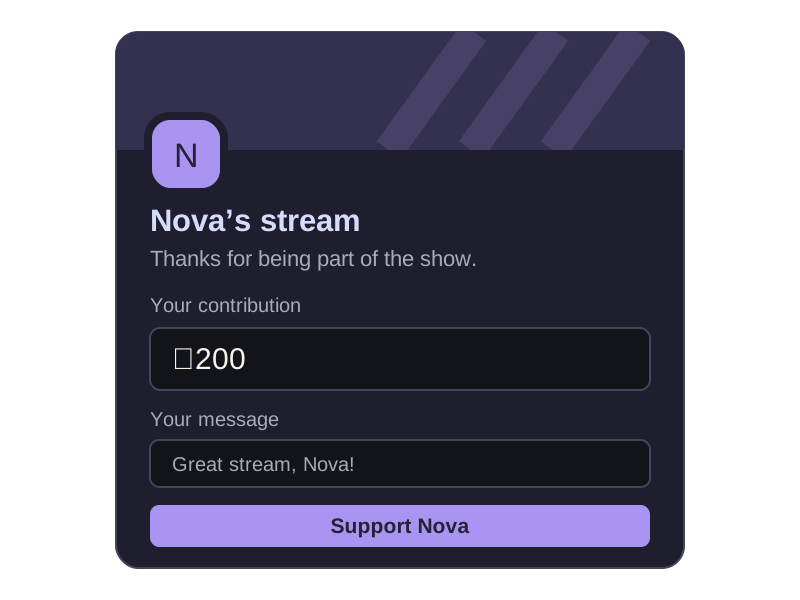
  • Illustrative donation page with creator branding, a contribution amount, and a supporter message.

    A donation page that feels like your channel

    Bring your branding, theme, reactions, and soundboard together on one page for supporters.
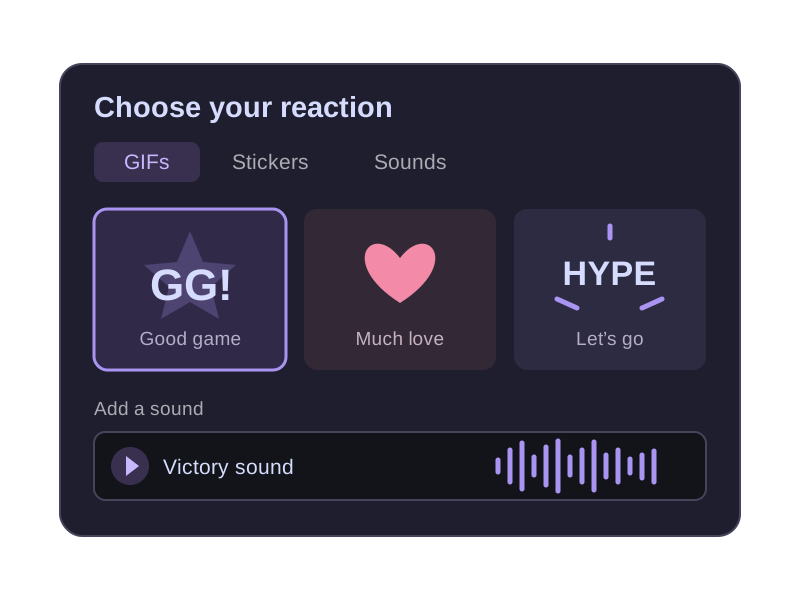
  • Illustrative media picker showing GIF reactions, stickers, and a sound selection.

    Your GIFs, stickers & sounds

    Turn your community’s inside jokes into donation reactions with your own media and audio uploads.

  • Voice selection preview. The selection moves through Indian, English, German, Portuguese, and Japanese voices, then repeats. No audio plays.
    Available voices
    Selecting a voice returns you to checkout.
    Indian
    ✓
    Indian Neural Female: KajalHindi / Indian English
    Selected
    English
    US Female: JoannaUS English
    US Male: MatthewUS English
    British Female: AmyBritish English
    British Male: BrianBritish English
    German
    German Female: VickiGerman
    Portuguese
    Brazilian Female: VitóriaBrazilian Portuguese
    Japanese
    Japanese Male: TakumiJapanese

    Optional text-to-speech

    Choose which voices supporters can use and control when their messages can be heard.

  • Sample donation goal. Aarya contributes ₹200, moving the streaming setup goal from ₹600 to ₹800 of ₹1,000, followed by supporter recognition.
    New streaming setup♡
    ₹600of ₹1,000
    Every contribution brings it closer.
    AAarya contributed ₹200
    A shared milestone, one donation closer

    Donation goals & supporter recognition

    Show goal progress, top supporters, recent donations, and custom banners after the alert ends.

  • Sample analytics. One ₹200 donation updates weekly donations from ₹2,400 to ₹2,600 and Aarya’s contribution from ₹400 to ₹600.
    Donations this week7 days
    ₹2,400+ ₹200
    MonSun
    Top supporter · Aarya₹400
    A donation arrives

    Donation analytics

    Follow donation trends and see your top donors from your creator dashboard.

  • Sample dashboard workflow. Test a two-second alert from TestDonor for ₹500, then replay Aarya’s saved ₹200 donation from recent donations. This demonstration does not send real alerts.
    Alert settings
    Duration2 seconds
    Test alert
    Recent donation
    Aarya · ₹200Great stream, Nova!
    Replay
    Stream previewReady
    T
    Test preview
    TestDonor₹500
    This is a test alert! Keep up the amazing work! 🎉
    Test your alert settings

    Timing, testing & replay

    Tune alert duration, test before going live, and replay a safe event.

Group donation goals

Multiple creators. One shared goal.

Bring your communities together around a shared donation target for your next collaborative stream.

Create a group with four creators and choose an equal split or set a custom split. A supporter donates ₹200 with the message “Great stream, team!” The donation alert appears on all four streams, then each creator receives a ₹50 share with the equal split.

Your first stream with PrimeChat

Go live in minutes

  1. 01

    Create your page

    Make your donation page feel like you, with your own media and style.

    primechat.live/yourname✦Your stream. Your community.Send some support
  2. 02

    Design your alert

    Choose your look, add your sounds, and place your overlay in OBS.

    ♡
    Maya sent ₹500That was an incredible play!
    Your colors. Your style.
  3. 03

    Start receiving support

    Share your page and let your community become part of every stream.

    ✓₹500 receivedA little love from your communityPayments powered by Razorpay

Questions before you go live

The practical details.

Can I use my existing Razorpay account?+

Yes, when payment-key access is enabled for your account. Connect your Razorpay keys in payment settings. Donations processed with those keys go to your Razorpay account, and Razorpay handles settlement to your linked bank account. PrimeChat plan fees and Razorpay charges still apply.

Can supporters donate from overseas?+

Supported foreign-currency donations are available when international payments are activated on your Razorpay account and enabled in PrimeChat. Availability depends on your payment account and configuration.

Which live chats can I connect?+

You can connect YouTube directly, use Nightbot to announce donations in YouTube chat, or connect Kick. Enable announcements to share donations in connected chat after the OBS alert appears.

Does PrimeChat work with OBS Studio?+

Yes. PrimeChat gives you a browser-source URL for OBS Studio and other broadcast tools that support browser layers.

When does an alert appear?+

PrimeChat creates the stream event after Razorpay confirms the payment, then places it in the creator’s alert queue.

Can I control what reaches the stream?+

Yes. Creators can pause or skip alerts, moderate messages, test layouts, and replay a safe event from their controls.

Does TTS play automatically?+

No. TTS is optional and follows the creator’s availability, voice, limit, and moderation settings.

Can I customize the supporter experience?+

Yes. Supported branding, messages, media, TTS, goals, and alert settings connect the donation page to the broadcast.

Ready for the next stream?

Make every contribution part of the show.

Connect verified payments, creator-controlled alerts, and a supporter experience built for live broadcasts.

Join as a supporter
PrimeChat

For the people who make the stream,
and the people who keep it going.

Explore

Overlay studioHow it worksFAQ

Join in

Donor sign upCreator login

© 2026 PrimeChat

Back to the top ↑
PrimeChat studioPlayground · Demo only

Creator access

Invite only

Tell us where you stream.

Share your channel details so we can review your payment, overlay, and support setup.

Primary platform

We use these details only to review and contact you about PrimeChat access.